

 Follow
 Rekomendasi
How to Write News Item Text in English with 7 Steps and Freelance Opportunities
News item text in English can be learned through 7 steps, starting from understanding the structure to opening opportunities to become a freelance writer.
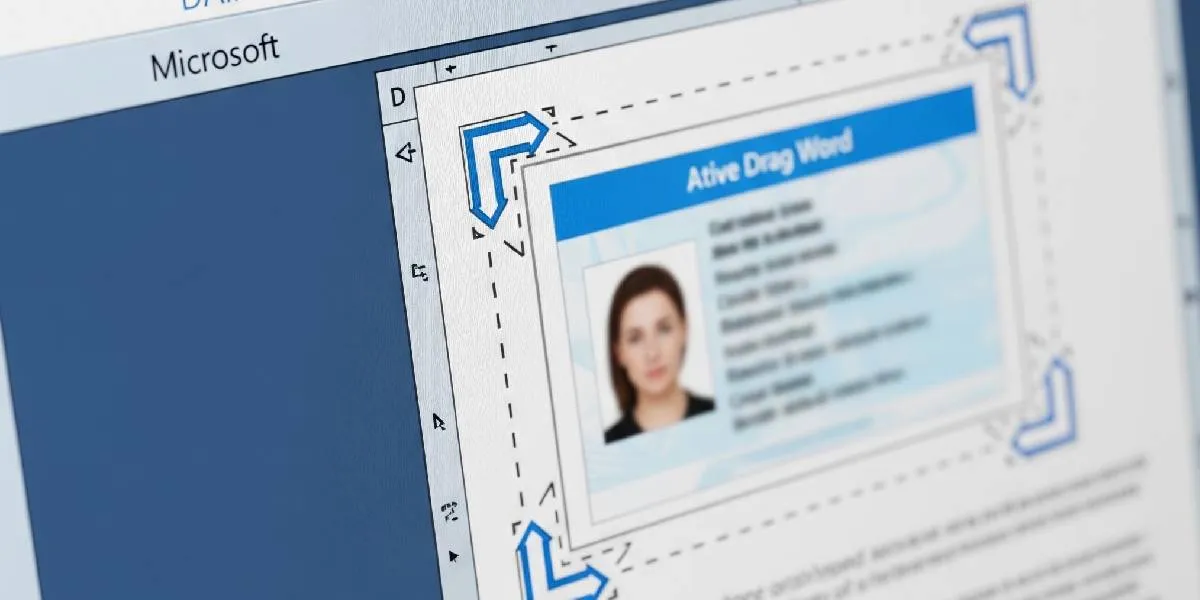
Kapanlagi.com - KTP Size in Word becomes important when someone needs to create a copy of an identity card for administrative purposes. Proper dimension settings help the KTP image in the document to match the size of the physical card and not change when printed.
Many users experience problems when inserting photos or scanned results of the KTP into Microsoft Word because the image size can be too large or too small. To ensure the results meet the standards, the KTP size needs to be adjusted manually based on ISO/IEC 7810 regulations.
This standard specifies the dimensions of the Indonesian electronic KTP as 85.60 x 53.98 mm or equivalent to 8.56 x 5.398 cm. This figure serves as a reference when setting the width and height of the KTP image in Word before the printing process.
The size of the ID card in Word actually refers to the image dimension settings to resemble a physical identity card. The Indonesian electronic ID card follows the international standard ISO 7810 type ID-1.
The ID-1 format is also used for various other cards such as ATM cards, credit cards, and driver's licenses. According to this standard, the card size is 85.60 mm in length and 53.98 mm in width with a nominal thickness of about 0.76 mm.
Since Microsoft Word typically uses centimeters or inches, the size in millimeters needs to be converted first. This adjustment is made to ensure that the ID card image does not change proportion when enlarged or reduced.
In addition to physical ID cards, the public can also use the digital version through the Digital Population Identity application. However, for certain document needs, a copy of the physical ID card is still often required.
Before inserting the ID card image into Word, it is important to know the standard size that should be used. According to the Minister of Home Affairs Regulation Number 38 of 2009 regarding the specifications of ID cards based on NIK, the card size follows the ISO/IEC 7810 standard.
Here are the details of the standard ID card size:
The conversion of these sizes uses certain rounding, so it is best not to mix units arbitrarily. In practice, adjusting the width and height of the image is the most important part to ensure that the printed result resembles the size of the original card.
The ID card size, which is the same as other identification cards in the ISO 7810 standard, also makes this format easily recognizable when used alongside other cards such as ATM cards or driving licenses.
After knowing the appropriate size, the KTP image settings in Word can be done without additional applications. Users just need to insert a photo or scan of the card, then adjust its size through the image settings menu.
Here are the steps:
The Lock aspect ratio option needs to be considered because this setting affects the shape of the image. If the image does not have the correct ratio, the printed result may appear stretched or shrunk.
Once the image size is correct, the printing process can be done using a regular printer. Users need to ensure that the paper settings and image position are correct before printing.
The steps to print an ID card through Word are:
To print a double-sided ID card, place the front side on the first page and the back side on the next page. If the printer supports duplex printing, use the Print on Both Sides option. Meanwhile, printers without this feature can be used by printing one side first, then flipping the paper to print the other side.
The type of paper can also affect the final result. Choosing the right paper helps make the copy appear clearer, especially if used for administrative purposes.
Some additional settings can help produce a neater KTP copy. One of them is to use a scan result with sufficiently high quality so that the text and photo remain clear.
Here are some tips that can be applied:
If the KTP file will be sent online, the photo size can also be compressed to reduce its capacity. Before being used for various administrative purposes, ensure that the population data remains valid.
By understanding the KTP size in Word, users can create identity copies with dimensions that meet the standards. The size of 8.56 x 5.398 cm serves as the main reference to ensure that the printout remains proportional and neat.
(kpl/mda)
Cobain For You Page (FYP) Yang kamu suka ada di sini,
lihat isinya
News item text in English can be learned through 7 steps, starting from understanding the structure to opening opportunities to become a freelance writer.

Natural stone and mini elephant grass terrace models present a combination of neat, cool natural elements that are suitable for various home concepts.
A guide on how to make your own aquarium filter using used bottles, sponges, and an aerator, complete with assembly steps and maintenance.
Looking for maranggi satay in Kemang? Here is a list of dining places around South Jakarta with menu options, prices, locations, and opening hours.

Recommendations for Chinese dramas about swapped children with stories full of family secrets, identity quests, and revealed past conflicts.
Check out 8 original examples of opening prayers for MPLS for Islam and Christianity as references to welcome new students in the new academic year.
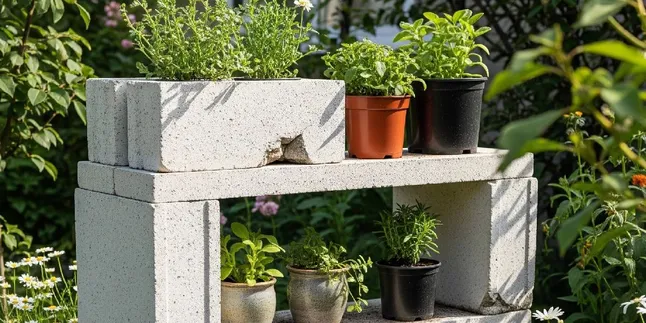
Used hebel can be repurposed into a strong and aesthetic plant pot rack. Check out the tools needed and the steps for making it from start to finish.

A list of Korean dramas about mafia falling in love that combines conflicts of the criminal world, action, and the emotional relationships of the characters.
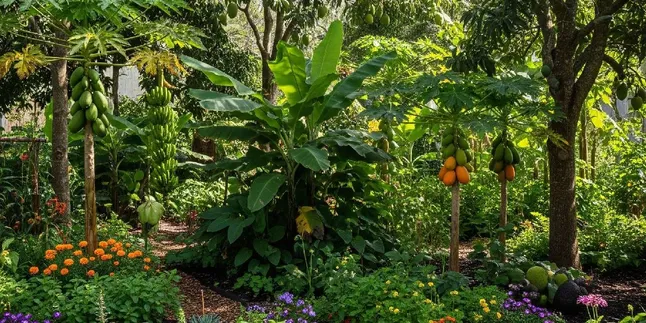
Creating a tropical food forest requires a combination of mutually supportive plants. Get to know 10 types of plants that can help maintain garden productivity throughout the year.
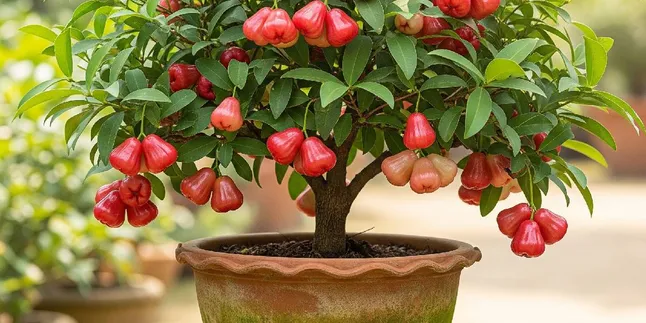
Limited land is no longer an obstacle to planting fruit trees. Here are 10 types of fruit plants that can be kept short yet remain productive.

Thai horror comedy films present supernatural stories with unique humor. Here are five recommendations that offer unique tales from various backgrounds.
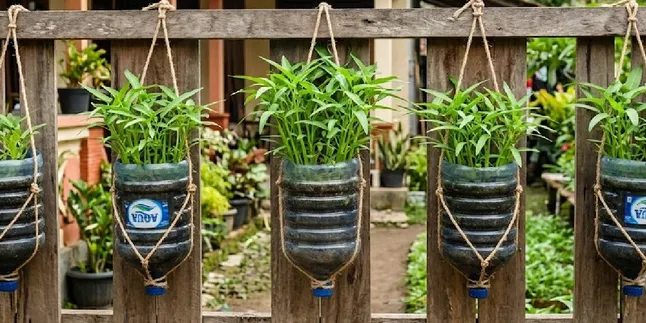
A used 19-liter gallon can be transformed into a space-saving hanging water spinach pot. Check out eight ideas, how to make it, and tips for optimal plant growth.
