

 Follow
 Rekomendasi
Example of RT Absence Letter: Complete Guide and Template
A complete guide to creating an RT absence letter with various template examples, writing formats, and tips to ensure the permission letter is accepted by the company.
Kapanlagi.com - Creating a bootable flash drive has become an essential need for anyone wanting to install or repair a computer operating system. Rufus comes as a practical solution to turn a regular flash drive into a ready-to-use installation media. This application is very popular due to its lightweight size and fast bootable creation process.
Using Rufus is actually quite simple, even for beginners. With an intuitive interface and easy-to-understand steps, anyone can create a bootable USB in just a few minutes. Rufus supports various operating systems such as Windows 7, Windows 8, Windows 10, Windows 11, and various Linux distributions.
According to Kingston.com, a bootable flash drive is a portable device that contains an operating system or recovery tools, allowing users to boot a computer using the files stored on that USB. This technology is very useful for operating system installation, system recovery, portable diagnostics, and disk cloning.
What is Rufus and Its Function (c) AI Illustration
Rufus is a free application developed by Pete Batard from Akeo Consulting under the GNU GPL V3 license. This application is specifically designed to help users create bootable USB media quickly and efficiently. The size of the Rufus file is very small, only about 1 MB, so it will not burden your device's storage capacity.
The main advantage of Rufus lies in its processing speed, which is much faster compared to similar applications. Rufus can create bootable flash drives for various operating systems including Windows XP, Vista, 7, 8, 10, 11, Ubuntu, Fedora, and other Linux distributions. This application also provides a FreeDOS option that is useful for booting in DOS mode, especially when upgrading BIOS or UEFI.
Rufus is available in two versions: portable and installer. The portable version can be run directly without installation, making it very practical to carry anywhere. This application supports both 32-bit and 64-bit architectures and has been equipped with support for the Indonesian language. Rufus also has a low-level utility feature that can be used to perform a secure format on flash storage media.
The functions of Rufus are extensive, including creating installation media for operating systems, flashing BIOS or UEFI from DOS, to reformatting storage media. When unwanted system damage occurs, Rufus can be utilized to install the latest version of BIOS firmware on a computer or laptop. This application can run on all Windows operating systems from Windows 7 to Windows 11.
Preparation Before Using Rufus (c) AI Illustration
Before starting the process of creating a bootable flash drive, there are several important things you need to prepare first. Proper preparation will ensure the process runs smoothly without obstacles.
1. Flash Drive with Adequate Capacity
Prepare a flash drive with a minimum capacity of 8 GB, but it is recommended to use 16 GB or more to ensure enough space. Make sure the flash drive is in good condition and has no physical damage. Keep in mind that all data on the flash drive will be erased during the process, so back up any important files first.
2. Operating System ISO File
Download the ISO file of the operating system you want to install. For Windows, you can download the official ISO file from the Microsoft website. Make sure the downloaded ISO file matches the required operating system version and that the file size is complete without corruption.
3. Latest Rufus Application
Download the latest version of the Rufus application from the official Rufus website. You can choose between the portable version or the installer according to your needs. The portable version is more practical as it can be run directly without installation.
4. Administrator Access
Ensure you have administrator access on the computer being used. The process of creating a bootable drive requires system-level permissions to function properly. If you are not an administrator, request access from a user who has those rights.
5. Stable Internet Connection
Prepare a stable internet connection to download the ISO file and the Rufus application. A good connection will ensure the files are downloaded perfectly without corruption or interruption.

Steps on How to Use Rufus (c) AI Illustration
Once all preparations are complete, it's time to start the process of creating a bootable flash drive using Rufus. Follow the steps below carefully for optimal results.
1. Connect the Flash Drive to the Computer
Plug the prepared flash drive into the USB port of the computer or laptop. Make sure the flash drive is recognized properly in Windows Explorer. If the flash drive is not detected, try using another USB port or check the condition of the flash drive.
2. Run the Rufus Application
Open the Rufus application by double-clicking the executable file. If using the portable version, the application will run immediately without installation. In the Device section, make sure your flash drive is detected correctly along with its storage capacity.
3.Select ISO File
Click the SELECT or PILIH button in the Rufus application. A file explorer window will appear, navigate to the location where the operating system ISO file is stored. Select the desired ISO file and then click Open. Rufus will automatically detect the type of operating system from the ISO file.
4.Set Boot Selection
In the Boot Selection section, Rufus will display the version of the operating system that has been selected. For Partition Scheme, choose GPT if the computer uses UEFI or MBR if using legacy BIOS. In the Target System, select UEFI for modern systems or BIOS (or UEFI-CSM) for older systems.
5.Configure Format Options
In the Format Options section, fill in the Volume Label as you wish, for example "Windows 10" or "Win11 Install". Select the NTFS File System recommended for Windows installation. Check the Quick Format and Create Extended Label and Icon Files options to speed up the process.
6.Start the Creation Process
After all settings are complete, click the START button to begin the process. A warning will appear that all data on the flash drive will be erased, click OK to continue. Rufus will start writing the ISO file to the flash drive and create a bootable partition.
7. Wait Until Finished
The process of creating a bootable flash drive will take about 10-15 minutes depending on the size of the ISO file and the speed of the flash drive. Do not remove the flash drive or turn off the computer during the process. Wait until the status bar shows green and the text "Ready" appears, indicating that the process has been completed successfully.
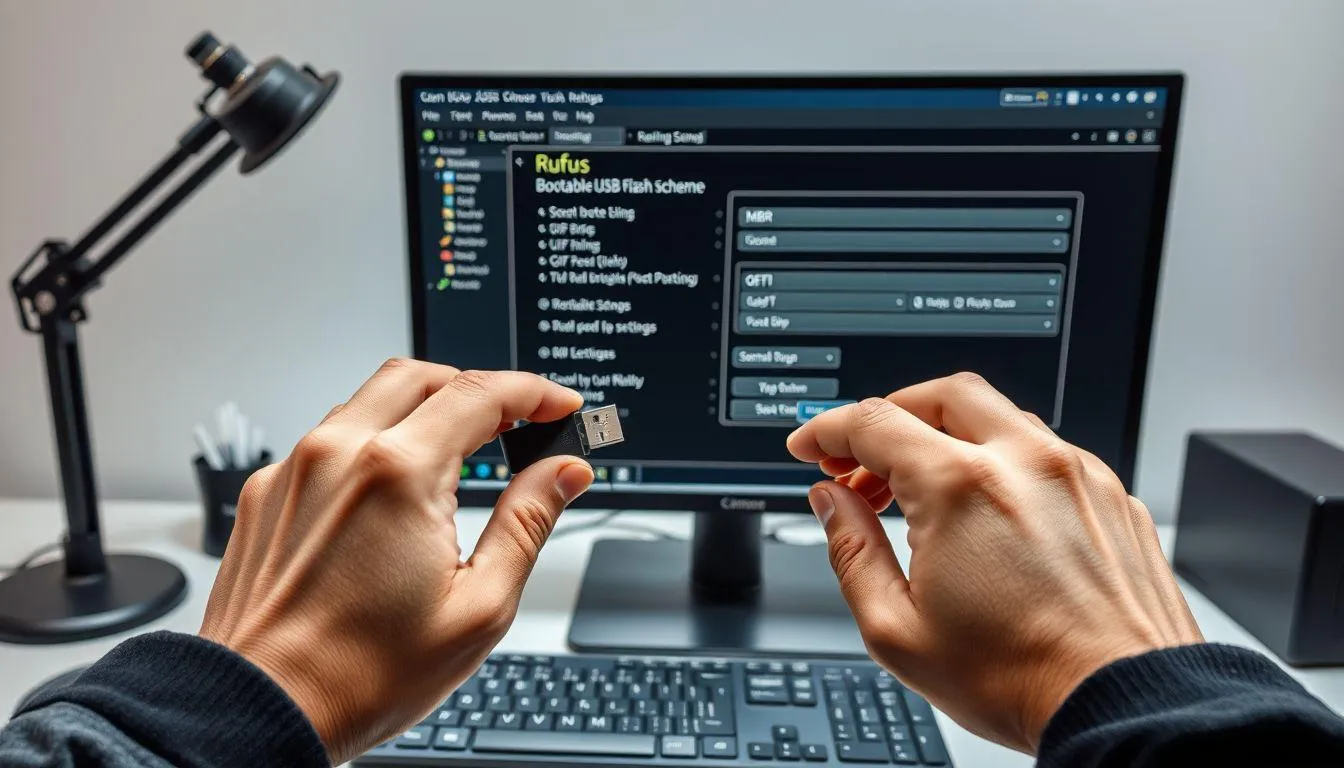
Partition Scheme and File System Settings (c) AI Illustration
Understanding the Partition Scheme and File System settings is very important in using Rufus so that the bootable flash drive can function properly. The correct settings will ensure compatibility with the computer system that will be installed.
Partition Scheme: MBR vs GPT
MBR (Master Boot Record) is an old partition scheme that is compatible with legacy BIOS and supports disks up to 2 TB. Choose MBR if the computer uses traditional BIOS or a 32-bit operating system. GPT (GUID Partition Table) is a modern partition scheme that supports UEFI and disks larger than 2 TB. GPT is more recommended for installing Windows 10 and Windows 11 on modern computers.
Target System: BIOS vs UEFI
BIOS (Basic Input/Output System) is old firmware still used on older computers. UEFI (Unified Extensible Firmware Interface) is modern firmware that is faster and more secure with Secure Boot features. To find out the type of firmware on your computer, press Windows + R, type msinfo32, and look at the BIOS Mode section.
File System: FAT32 vs NTFS
FAT32 is compatible with almost all systems but has a maximum file size limit of 4 GB. NTFS is the modern Windows file system that supports large files and is more secure. For Windows installation, NTFS is the recommended choice because the install.wim file is usually larger than 4 GB.
Correct Settings Combination
For UEFI Mode: use GPT + UEFI + NTFS. For Legacy BIOS: use MBR + BIOS + NTFS. For maximum compatibility (UEFI and Legacy): use MBR + BIOS/UEFI-CSM + FAT32, but be aware of the file size limitations. Rufus will typically adjust the settings automatically based on the selected ISO file.
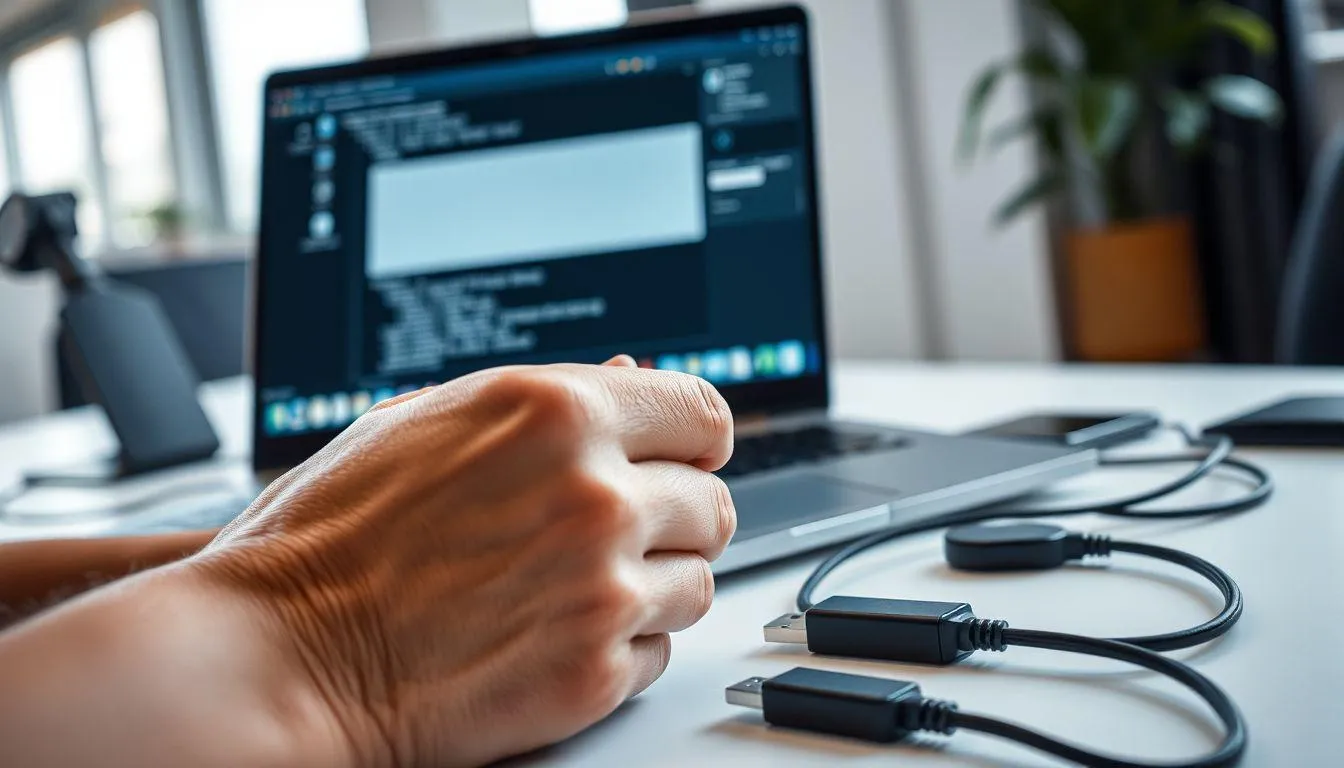
Rufus Tips and Troubleshooting (c) AI Illustration
Although using Rufus is relatively easy, sometimes there are some issues that need to be addressed. Here are tips and solutions for common problems when using Rufus.
Flash Drive Not Detected
If the flash drive does not appear in Rufus, try unplugging and reconnecting the flash drive to another USB port. Make sure the flash drive is not write-protected by checking the physical switch on the flash drive. Click the "Refresh drive list" button in Rufus to update the device list. If it is still not detected, try formatting the flash drive first through Windows Explorer.
Creation Process Failed or Error
Ensure the ISO file being used is not corrupt by checking the file size and MD5/SHA-1 hash if available. Temporarily disable antivirus software as some antivirus programs may block the Rufus process. Run Rufus as Administrator by right-clicking and selecting "Run as Administrator." Use a different flash drive if the problem persists, as the flash drive may be damaged.
Bootable Flash Drive Not Working
Check the boot order settings in BIOS/UEFI and ensure USB is set as the first option. Make sure the Partition Scheme and Target System settings in Rufus match the computer's firmware mode. Disable Secure Boot in BIOS if using an operating system that does not support this feature. Try recreating the bootable flash drive with different settings.
Slow Process Speed
Use a USB 3.0 or USB 3.1 port for faster transfer speeds compared to USB 2.0. Ensure no other applications are accessing the flash drive during the process. Use a flash drive with high read/write speeds for optimal results. Close unnecessary applications to free up system resources.
Specific Error Messages
Error "Access Denied": Run Rufus as Administrator and ensure the flash drive is not being used by other applications. Error "Invalid ISO": The ISO file is corrupt or incomplete, please download the ISO file again from the official source. Error "Not Enough Space": Use a flash drive with a larger capacity or choose a smaller ISO file. Error "Write Protected": Remove write protection on the flash drive through Disk Management or Registry Editor.
When creating a bootable Windows flash drive, there are two popular options: Rufus and the Media Creation Tool from Microsoft. Understanding the differences between them will help you choose the tool that best suits your needs.
The Media Creation Tool is an official application from Microsoft specifically designed to download and create Windows installation media. This tool is very suitable for beginners because the process is automated and does not require a separate ISO file. The Media Creation Tool will download the latest Windows files directly from Microsoft's servers, ensuring you get the most up-to-date version. However, this tool requires a stable internet connection and the USB creation process tends to be slower.
Rufus, on the other hand, is a third-party application that gives users greater control. Using Rufus allows customization of settings such as partition scheme, file system, and boot options. Rufus works faster in writing data to the flash drive and can function offline if the ISO file is already available. This application also supports various operating systems, not just Windows, making it more flexible for different needs.
In terms of speed, Rufus excels with a bootable creation process that can be 2-3 times faster than the Media Creation Tool. Rufus also provides the option to create bootable drives that are compatible with both UEFI and Legacy BIOS simultaneously. However, the Media Creation Tool is safer because it comes directly from Microsoft and does not require technical knowledge about partition settings or file systems.
For beginner users who want the easiest way to install Windows, the Media Creation Tool is the best choice. Meanwhile, for more experienced users, IT technicians, or those who need more flexibility, Rufus is the more appropriate choice. Both tools are equally effective; it just depends on the user's skill level and specific needs.
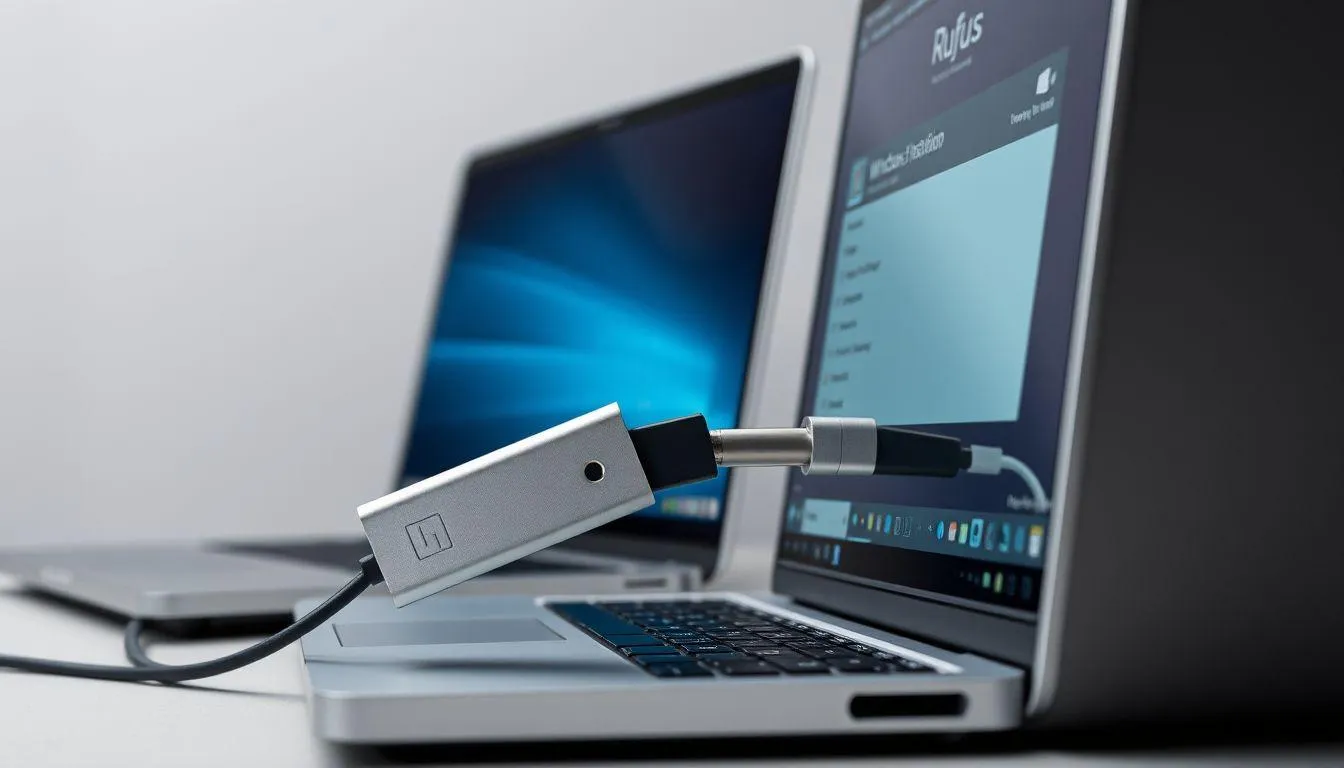
FAQ (Frequently Asked Questions) (c) AI Illustration
Yes, Rufus is an open-source application that is completely free and safe to use. This application has a GNU GPL V3 license, so it can be downloaded and used at no cost. Rufus also does not contain malware or adware, but make sure to download it from the official Rufus website to avoid dangerous fake versions.
The recommended minimum flash drive capacity is 8 GB for installing Windows 10 or Windows 11. However, for optimal results and extra space, it is best to use a flash drive with a capacity of 16 GB or more. For lighter Linux operating systems, a 4 GB flash drive may be sufficient depending on the distribution used.
Yes, all data on the flash drive will be erased during the bootable creation process. Rufus will format the flash drive and rewrite it with the operating system files. Therefore, it is very important to back up all important files from the flash drive before starting the process. Once used for installation, the flash drive can be reformatted for regular data storage.
To determine the firmware mode of the computer, press the Windows + R keys, type "msinfo32" and then press Enter. In the System Information window that appears, look for the "BIOS Mode" section. If it says "UEFI" then the computer is using UEFI, if it says "Legacy" then it is using traditional BIOS. This information is important to determine the correct settings when using Rufus.
Yes, Rufus supports creating bootable drives for various Linux distributions such as Ubuntu, Fedora, Debian, Linux Mint, and many more. The way to use Rufus for Linux is the same as for Windows, just select the desired Linux ISO file. Rufus can even detect the type of Linux distribution and automatically adjust the settings for the best compatibility.
The speed of the process is influenced by several factors such as the read/write speed of the flash drive, the USB port used (USB 2.0 is slower than USB 3.0), and the size of the ISO file. To speed up the process, use a good quality flash drive with high speed, plug it into a USB 3.0 port or higher, and ensure that no other applications are excessively using system resources.
Yes, the bootable flash drive can be used multiple times for operating system installations on various computers. The flash drive will continue to function as an installation medium until you reformat it or repurpose it for other needs. However, it is important to remember that intensive use of the flash drive as a bootable medium can accelerate wear compared to normal use for data storage.
(kpl/fed)
Cobain For You Page (FYP) Yang kamu suka ada di sini,
lihat isinya
A complete guide to creating an RT absence letter with various template examples, writing formats, and tips to ensure the permission letter is accepted by the company.

Ferry Irwandi ends his journey to distribute aid funds for disaster victims in Sumatra, completing his mission.

Agnez Mo has skipped court summons three times in a row, facing risks like this in the future.

The disaster of his house collapsing forced senior actor Diding Boneng to temporarily leave his residence. He is now staying at the RW office, check out the complete facts below!

Gisel feels grateful to have gone through this year well despite many challenges faced. She is happy that Gempi received an award at the AMI Awards 2025.

Behind the sometimes exhausting fillers, these anime remain legendary and have a very strong main story.

El Putra Sarira celebrates his birthday, not flaunting a celebration but instead promoting fundraising for the victims of the Sumatra disaster.

A complete guide on how to use a portable fire extinguisher (APAR) with the effective PASS technique to safely extinguish fires in the early stages.

Congratulations, Steffi Zamora and Nino Fernandez have been blessed with their first child, a girl, on Sunday (28/12). Check out their special moments below!

A complete guide on how to use a caliper measuring tool to accurately measure the diameter, depth, and thickness of objects.

A complete guide on how to use baby oil for healthier, softer, and shinier hair. Learn the correct application steps and its benefits.

A complete guide on how to use baking soda for whiter and cleaner teeth. Learn about safe methods, benefits, risks, and tips for dental care with baking soda.
