

 Follow
 Rekomendasi
6 Easy and Practical Ways to Split PDF Files, Can Be Done Online
Here is a review of the steps to split PDF files using six different methods. You can choose which one is the easiest and suits your needs.

Kapanlagi.com - PDF is one of the most commonly encountered file formats in daily life. PDF, which stands for Portable Document Format, is designed to maintain the document's format consistently without being affected by different devices or operating systems. Although the PDF format has many advantages, there are situations where someone needs to convert a PDF file to Word format.
Read also: The Most Comprehensive Ways to Merge PDF Files.
One of the main reasons is to allow for further editing or to extract specific text from the PDF document. This can occur when someone wants to edit the content of the document, add notes, or quote specific text for certain purposes. In such situations, the ability to convert PDF format to Word becomes a necessity.
Now, there are various ways to quickly and easily convert PDF files to Word format using mobile devices. Curious about how to do it? Just check out the following review to learn more.
WPS Office has become one of the quite popular applications. This application can be used to read various types of document formats. Not only that, WPS Office can also be used to convert PDF format to Word. Here are the steps to convert a PDF file to Word using the WPS Office application:
- Make sure you have downloaded and installed the WPS Office application from the Google Play Store for Android users or the App Store for iOS users.
- After the installation is complete, open the WPS Office application on your mobile device.
- On the main screen of the application, select the option to open or import a file. Choose the PDF file that you want to convert to Word format.
- After opening the PDF file, access the "Special Features" menu, which is usually located at the bottom of the screen.
- In the "Special Features" menu, find and select the "PDF to Word" option. This will open the PDF to Word converter within the application.
- If a confirmation or warning window appears, click "OK" to proceed with the conversion process. Wait a moment until the PDF document fully opens.
- Once the conversion is complete, you can start editing the Word document as needed. The WPS Office application provides a variety of easy-to-use editing tools.
- After finishing editing, select the "Save As" option and specify the desired Word file format, such as .docx or .doc.
- The document that has been converted is now saved on your mobile device and can be accessed at any time.
If you are too lazy to install additional applications, you can try this method to convert PDF files to Word. You can use the conversion feature available on the Smallpdf site. Here’s how to convert PDF files to Word via the Smallpdf site:
- First, open a browser on your mobile device and access the site www.smallpdf.com.
- On the Smallpdf page, scroll down until you find the "PDF to Word" option marked with light blue color. Click this option to start the conversion process.
- Click "Choose File" to select the PDF document you want to convert. In addition to selecting from local storage on your mobile device, you can also choose documents from Dropbox or Google Drive.
- After selecting the document, wait a moment for Smallpdf to complete the conversion process. This process usually takes quite a short time.
- Once the process is complete, you can download the converted Word document directly to your mobile device.
- If desired, there is an option to upload it to Dropbox or Google Drive to save it online.
Ilovepdf can also be a reference site for converting PDF file formats to Word. This site has a method that is just as easy as Smallpdf. To convert a PDF file format to Word on Ilovepdf, you can follow these steps:
- First, open the browser on your mobile device and access the official I Love PDF website through the link https://www.ilovepdf.com.
- Once you are on the main page, find and select the "PDF to Word" menu. This option is usually found on the site interface, often in a striking color or with an easily recognizable icon.
- Click on the "Select PDF File" option to choose the PDF document you want to convert to Word format. Additionally, you can also retrieve documents from online storage like Google Drive or Dropbox.
- After selecting the PDF document, click the "Convert to Word" button to start the conversion process. Make sure to wait until the process is complete.
- I Love PDF will automatically convert from PDF to Word during this process.
- Once the conversion process is complete, the site will provide the "Download Word" option. Click this option to download the newly generated Word document to your mobile device.
If the methods above haven't worked, you can try the fourth way to convert PDF to Word, which is through the Pdf2go website. For the steps, you can follow the guide below:
- Access the browser on your mobile device and open the Pdf2Go website at www.pdf2go.com.
- On the main page of Pdf2Go, search for and select the "PDF to Word" option. Usually, this option is located among the services offered by the site.
- Press the "Choose File" button to upload the PDF document you want to convert. If your file is stored in cloud storage like Google Drive or Dropbox, Pdf2Go also provides an option to retrieve documents from there.
- Wait a moment while Pdf2Go processes the conversion.
- After the conversion process is complete, check the results. Pdf2Go may display a preview of the converted Word document. So, make sure that the results meet your expectations.
- Click the "Download" option or something similar to download the newly generated Word document. You can save it directly to your mobile storage.
- As additional information, Pdf2Go often offers the option to upload documents directly to services like Google Drive or Dropbox.
These are among the 4 easy and practical ways to convert PDF files to Word on your mobile device. Hope it is useful and happy trying!
LET'S JOIN THE WHATSAPP CHANNEL KAPANLAGI.COM SO YOU DON'T MISS THE LATEST UPDATES AND NEWS ABOUT THE ENTERTAINMENT WORLD AT HOME AND ABROAD. CLICK HERE YES, KLOVERS!
(kpl/psp)
Cobain For You Page (FYP) Yang kamu suka ada di sini,
lihat isinya
Here is a review of the steps to split PDF files using six different methods. You can choose which one is the easiest and suits your needs.

Unfortunately, many people still tend to ignore the active period of their cards. In fact, checking the active period of a Smartfren card can actually be done easily and quickly. Here are the steps you can follow.

Going live on TikTok is not just about broadcasting video, but also about interacting with followers and using interesting effects.

HYFE is here as a postpaid service designed specifically for those whose lifestyle is fully digital and need a stable connection without hassle.

This article will discuss the ways to take screenshots on laptops of various brands. Curious about how to do it? To find out, just read the following review.

Curious about how to take a screenshot on a laptop? To find out, here is a review of how to screenshot on a Windows 10 laptop that you can easily practice.

Want to earn money from TikTok? Join the TikTok affiliate program! Find a complete guide for creators and sellers, and start earning commissions from your creative content right now!

Discover everything you need to know about the laws of fidyah for fasting in this complete and easy-to-understand guide.

Discover the secrets to successful salary negotiation with the right tips and strategies, suitable for both fresh graduates and experienced professionals.

Ustadz Adi Hidayat, or commonly called UAH, is a renowned scholar who thoroughly discusses the Qunut Subuh in a clear and engaging manner.

Discover five powerful tips to protect yourself from scams on social media that you must know!
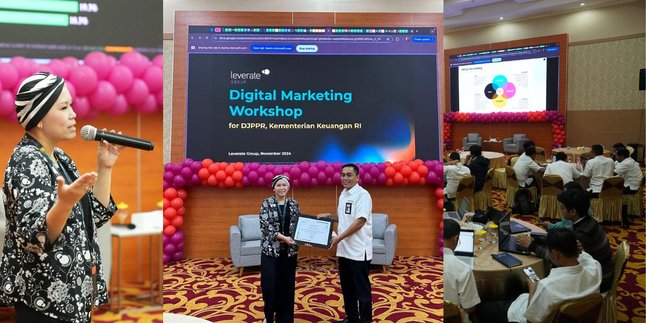
This training aims to strengthen the knowledge and skills of the team in educating the public about State Sharia Securities (SBSN)/State Sukuk as a strategic investment instrument, especially through digital platforms and social media.
